 ELISSA Wiki
ELISSA Wiki
Disclaimer: This wiki is used to document the ELISSA research environment, which is actively developed and maintained by the Institute of Space Systems at the TU Braunschweig and the Chair of Space Technology at TU Berlin. The repositories containing the source code are private and only visible for the team members. If you are interested in the project, please contact the institute head of the Insitute of Space Systems (IRAS) or the Lead of the SmallSat Rendezvous & Robotics group at the Chair of Space Technology (RFT).
This wiki aims to document the ELISSA project and serves as a knowledge base. It is intended to provide
information to the testbed operators and developers and can serve as an input for documents such as technical notes or other publications. It develops its full potential when the pages are actively maintained. If you find an error or want to add missing information, feel free to edit the page or create a pull request.
ELISSA includes the Robot Operating System (ROS)-based software framework and an air-bearing laboratory situated at IRAS of the TU Braunschweig.
It provides an air bearing table to allow for a friction less movement of satellite mock-ups with three degrees of freedom (DOF). The driver for the
development is active debris removal and on-orbit servicing. The system aims at hardware in the loop simulations of distributed and small satellite systems. A Robot Operating System (ROS) environment is used to conduct the experiments.
The wiki is divided into different sections and pages providing all the necessary information. You can find this structure on the left side of the page in the sidebar as well:
Table of Content:
- Overview over the ELISSA system and its subsystems
- User guides explaning the operation procedures
- Guides for the development of ELISSA software
- Documentation for the Astrobee environment
Further Reading
Besides this wiki, multiple publications concerning the testbed and conducted experiments are available:
For team members, additional material like thesis and other documents are available here:
Contributing to this Wiki
The wiki is most helpful when it is up to date and actively maintained. Therefore the contribution to the wiki is a core element. The major possible contributions are described in this section to help the users:
- Editing an existing page
- Creating a new page
- Upload and include an image
The wiki pages are written in Markdown. General formatting information can be easily accessed in the internet. A helpful cheat sheet is for example given here. Furthermore an introduction to the basic syntax and extended syntax are provided as well.
Editing an Existing Page
Two possibilities exist to edit an already created page:
- Use the edit button provided in the top right corner of the page
- Edit the Markdown file in a local repository
The first option is the easiest one, as it can be directly accessed when reading the page. When clicking the edit button, the online text editor of Github is opened with the corresponding Markdown file. The changes can now be made and then simply committed.
The second option is useful when multiple changes on different changes should be made. As with any other repository, the wiki can be cloned on your local computer. Next, all necessary Markdown files can be edited and than committed and pushed together. For this, is it helpful to know the repository file structure:
elissa3_wiki/
┣ assets/           -> Used for the integration with GithubPages
┣ styles/           -> Used for the integration with GithubPages
┣ wiki/             -> Contains all wiki Markdown files
┃ ┣ graphics/       -> Contains all images used in the wiki pages
┃ ┣ ...
┃ ┗ main_page.md
┣ _includes/        -> Used for the integration with GithubPages
┣ _layouts/         -> Used for the integration with GithubPages
┣ _posts/           -> Used for blog posts (currently deactivated)
┣ _sass/            -> Used for the integration with GithubPages
┣ .gitignore
┣ LICENSE
┣ README.md
┗ _config.yml       -> Configuration file for the GithubPages wiki theme
The markdown files are placed in the wiki/ folder. If necessary, subfolders can be created to clean the directory. Look there for the necessary Markdown source file.
Creating a New Page
When creating a new page, the same two options are possible as for editing a page:
- Use the add new button in the top right corner
- Create a new file in the local repository
When creating a new file in the browser using the add new button, the GitHub web editor opens. To keep the repository clean, it is necessary to enter the corresponding folder based on the category before the filename. The folder are described in the section above. Furthermore each filename can only be used once, so make sure a useful and unique name is chosen. The creation of a new file in the local repository is very similar. A new file is created in the corresponding folder and than the changes are committed and pushed.
When a new page is created, it is very important that it is trackable. So it would be useful to create links on other pages which refer to your new page. Otherwise you just created a file in the void which cannot be found by any interested user. A link may look like this:
This is a text, and [this text is highlighted as a link](filename_of_the_new_page).
The foldername must not be written before the filename as well as the ending. Furthermore it would be helpful if the new page is mentioned in the sidebar. The file containing the sidebar is located in _includes/own/sidebar.html. The structure should be self-explanatory when looking at the already included files. An example is given here:
<p><details><summary>Chapter Description</summary><p></p>

<ul>
  <li><a href="top_layer_file_name">Top Page Description</a></li>
  <ul>
    <li><a href="top_layer_file_name#section-title">Section Description</a></li>
  </ul>
  <li><a href="other_file_in_chapter">Page Description</a></li>
</ul>
The file names are referenced again without a folder and the file ending. Furthermore, sections can be referenced by writing the filename, a hashtag and the section title with - instead of spaces. Lower layer headings also use only one hashtag.
Uploading and Including Images
To upload and include an image, you can either drop it in the corresponding /graphics folder from the browser or add it to your local repository and then commit and push it. To include the image, two options are available. The default Markdown syntax is the easiest way to include an image:
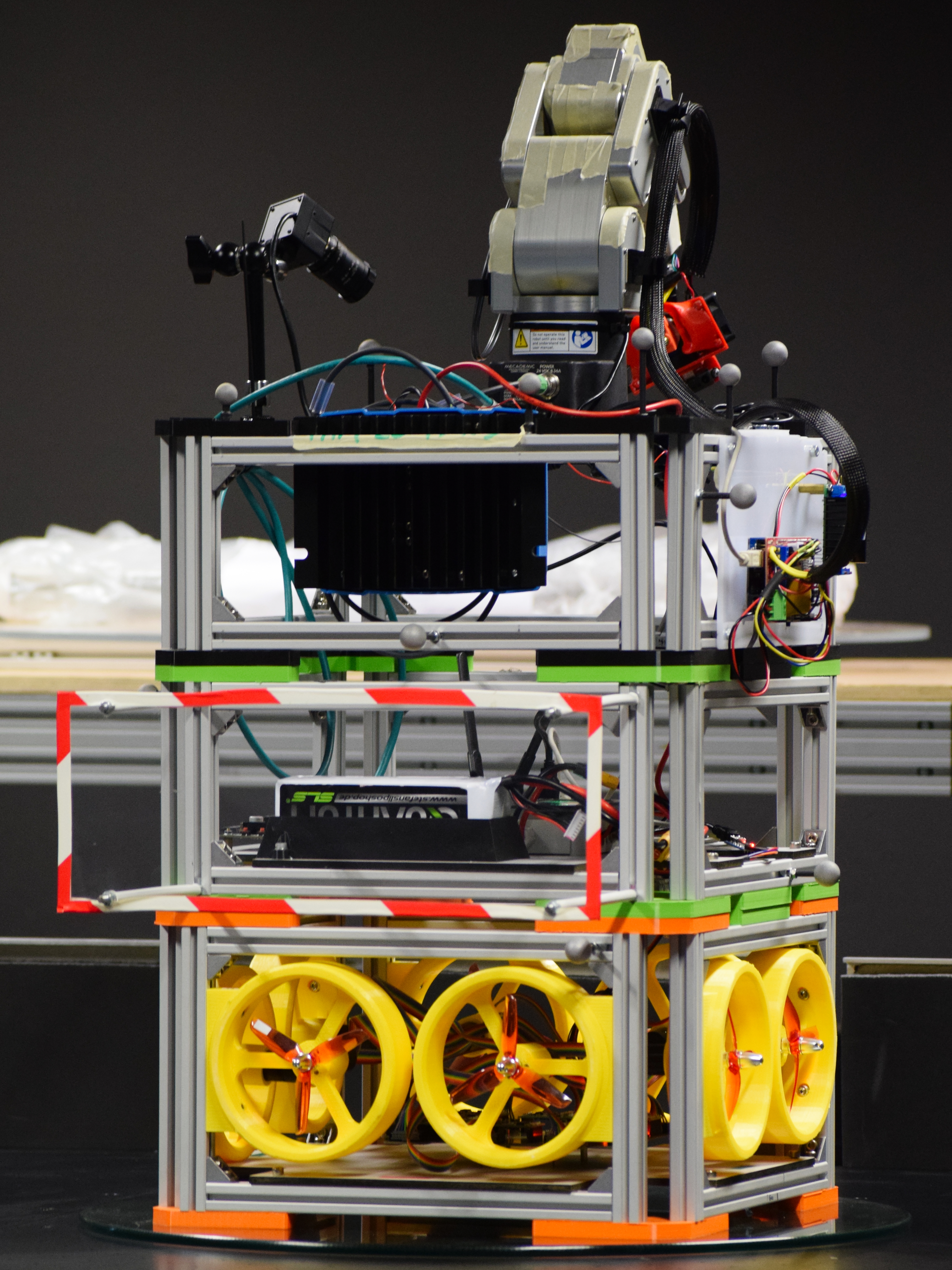
Using this syntax, the image is always maximized to fit the default page width. This may lead to very large images, especially if they are vertically oriented. To decrease the image size, the html syntax can be used. Here, a value for the width (or height) can be defined. Note that a link from the main directory must be defined:
<img src="wiki/graphics/hannibal.jpg" alt="The Hannibal freeflyer" width="400">